
Overview
SMS campaigns in Trezoro allow businesses to send targeted text message promotions and updates directly to customers' mobile phones. This feature enables bulk messaging to segmented customer lists, helping businesses increase engagement and drive sales through direct mobile marketing.
Prerequisites for Sending SMS Campaigns
Before creating your first SMS campaign in Trezoro, ensure you have:
An active Trezoro account with available SMS credits and a carrier-approved dedicated phone number is required to use the SMS feature. If you haven't submitted your business information yet, please complete this formto begin the registration process.
Customer phone numbers collected with proper SMS opt-in consent
SMS opt-in checkboxes enabled on your Trezoro App during customer sign-up
Customer phone numbers entered without country codes (system requirement)
Important Restrictions: SMS campaigns are unavailable for businesses in vape, tobacco, and CBD categories due to carrier restrictions.
Step-by-Step Guide to Create an SMS Campaign
Step 1: Access the SMS Campaign Dashboard
Log into your Trezoro dashboard
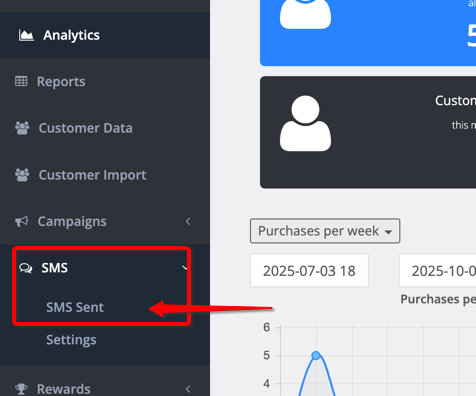
Navigate to SMS > SMS Sent from the main menu
The SMS Sent page displays:
Your remaining SMS credit balance
Summary of all created campaigns
Campaign status for each message sent
Step 2: Create a New Campaign
Click the "Create new SMS Campaign" button
This opens the SMS message composer interface

Step 3: Compose and Send Your Message
Type your message in the text field provided
Select target customers from your customer list
You can segment by customer groups or select individual recipients
Click "Send the SMS Campaign" when ready

Step 4: Confirm and Launch
A confirmation pop-up will appear with campaign details
Review the message content and recipient count carefully
Click "Confirm" to send the SMS campaign immediately

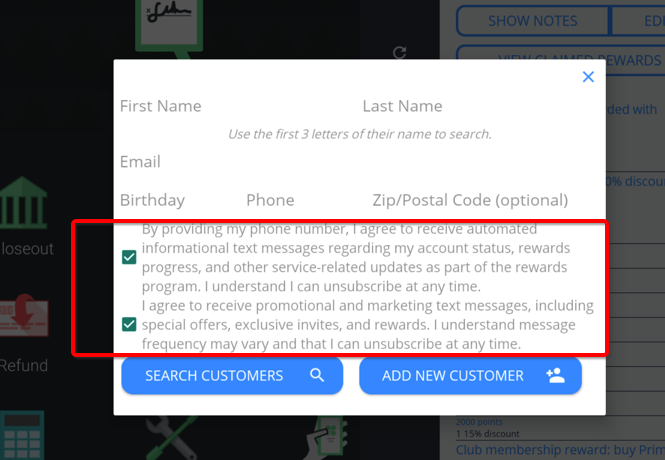
Don’t forget to check the SMS Opt-in checkboxes on the Trezoro App when signing up customers to support the SMS feature. Also, there's no need to include the country code when adding a phone number, as it will not be recognized by our system.
Critical Information About SMS Credits and Opt-In
SMS Credit Expiration
Unused SMS credits expire after 30 days from the date of purchase. Plan your campaigns accordingly to maximize your investment.
SMS Opt-In Requirements
To legally send SMS campaigns and ensure deliverability:
Enable SMS opt-in checkboxes on your Trezoro App
Customers must actively consent to receive text messages during sign-up
Maintain compliance with SMS marketing regulations (TCPA, GDPR)
Frequently Asked Questions
Q: How many SMS credits do I need per campaign? A: Each SMS message sent counts as one credit. A campaign to 100 customers requires 100 credits.
Q: Can I schedule SMS campaigns for later? A: No. The article describes immediate sending.
Q: What happens if a customer hasn't opted in? A: Customers that haven't opted in won't be counted for in the available list of segmented customers. You can only send SMS to customers who have explicitly opted in through the Trezoro App checkboxes to maintain compliance.
Q: Why can't I send SMS campaigns? A: Verify you have sufficient SMS credits and that your business is not in restricted categories (vape, tobacco, CBD).
Q: Do SMS credits roll over? A: No, unused SMS credits expire 30 days after purchase.
Best Practices for SMS Campaigns in Trezoro
Monitor your credit balance regularly to avoid campaign interruptions
Test messages by sending to yourself first
Keep messages concise - SMS has character limits
Include clear calls-to-action in your message text
Segment your audience for more targeted, effective campaigns
Track campaign performance through the dashboard status summary
Troubleshooting Common Issues
Message not sending: Check SMS credit balance and verify customer opt-in status
Message stuck in 'processing': There might be a carrier-related issue. Please contact Trezoro Support
Phone number errors: Ensure numbers are entered without country codes
Campaign unavailable: Confirm your business category is not restricted
Summary
Setting up SMS campaigns in Trezoro is a straightforward four-step process: access the SMS dashboard, create a new campaign, compose your message and select recipients, then confirm and send. Remember to maintain proper opt-in consent, monitor credit expiration dates, and follow phone number formatting requirements for successful SMS marketing campaigns.