
Overview
Email Campaigns in Trezoro allow businesses to send targeted promotional messages, announcements, and updates directly to customers' registered email addresses.
This feature enables businesses to send bulk email campaigns to segmented customer lists, helping increase customer engagement, promote offers, and drive sales through direct marketing.
Prerequisites for Sending Email Campaigns
Before creating your first Email Campaign in Trezoro, make sure you have:
An active Trezoro account with a Growth or PRO subscription.
Customers who have opted in to receive email communications from your business.
Customers who are enrolled in the Trezoro app and have enabled the Email/SMS opt-in option during registration.
Important
Only customers with valid email addresses can receive email communications. Incorrect, invalid, or fake email addresses may result in a bounce and the email will not be delivered.
Step-by-Step Guide to Create an Email Campaign
Step 1: Access the Email Campaigns Dashboard
Log in to your Trezoro Dashboard.
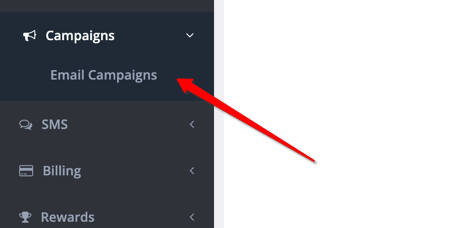
Navigate to Campaigns > Email Campaigns from the main menu.
Step 2: Create a New Campaign
Click Create New Email Campaign.
The email campaign composer will open.

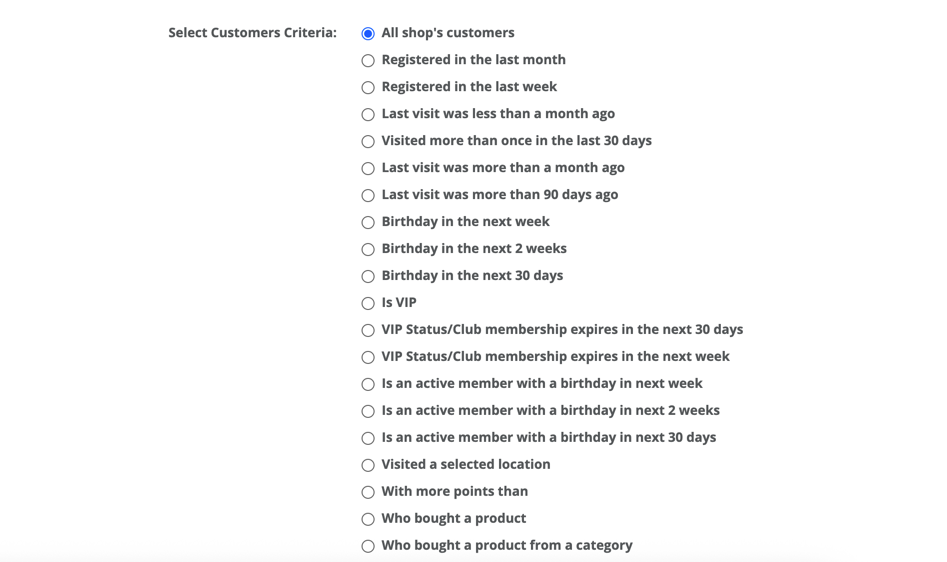
Step 3: Select Your Customer Segment
Select the customer segment or segments you want to target.
Only eligible customers who have opted in to receive email communications will be available for the campaign.
Review the estimated recipient count before proceeding.
Step 4: Create Your Email
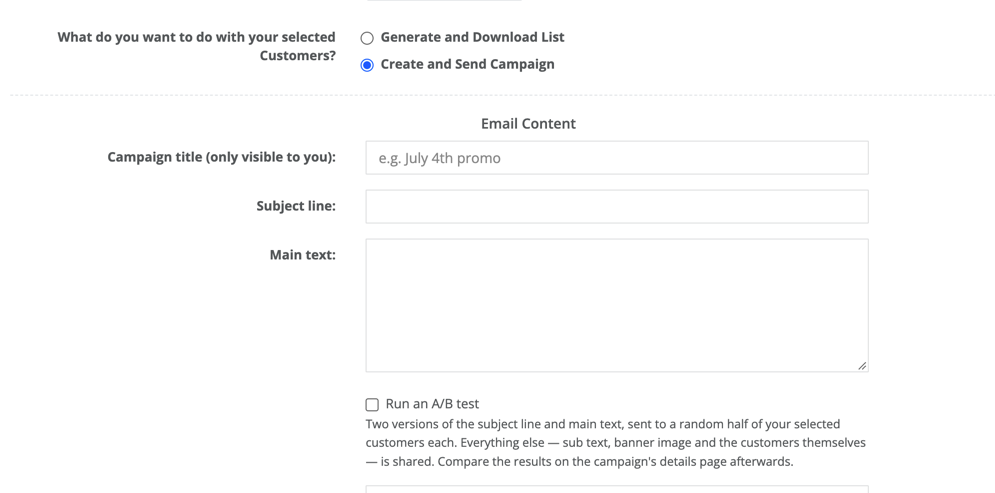
Enter the necessary information for your campaign, including:
Campaign Title – Internal name used to identify your campaign.
Subject Line – The subject customers will see in their inbox.
Banner – Optional image or promotional banner.
Body – The main content of your email.
Subtext – Additional supporting information, if applicable.
Send Schedule – Choose when you want the campaign to be sent, if scheduling is available.
Review your content carefully before proceeding.
Step 5: Confirm and Send
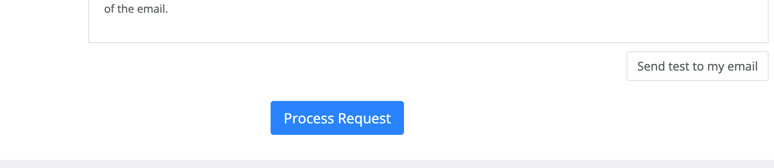
Click Process Request.
You may also send a test email first before sending the actual email campaign blast.
A confirmation window will appear showing the campaign details and recipient count.
Review the campaign information carefully.
Click Confirm to launch the campaign.
Once confirmed, the campaign will be processed and sent to eligible recipients.
Email Campaign Metrics and Reports
After creating an Email Campaign, merchants can monitor campaign performance directly from the Email Campaigns dashboard.
The campaign metrics provide an overview of each campaign, including delivery and engagement information.
Available Campaign Metrics
Metric | Description |
|---|---|
Date Sent | The date the email campaign was sent. |
Campaign Title | The title assigned to the campaign. |
Status | The overall campaign status, such as Sent, Delivered, or Cancelled. |
Target Recipients | The number of customers targeted by the campaign. |
Sent Status | The number or status of emails successfully sent for processing. |
Failed Status | The number of emails that failed to send or could not be delivered. |
Delivered | The number of emails successfully delivered to recipients. |
Open Rate | The percentage of delivered emails that were opened by recipients. |
These metrics allow merchants to review campaign delivery and customer engagement and identify which campaigns are reaching and engaging their audience.
PRO merchants can download a CSV report of their Email Campaign metrics.
Frequently Asked Questions
Q: Who can receive my Email Campaign?
Only customers who have a valid registered email address and have opted in to receive email communications from your business can receive your marketing emails.
Q: What happens if a customer's email address is incorrect?
An invalid or incorrect email address may result in a bounce, meaning the email cannot be delivered to that address.
Q: Can I send an email campaign to customers who have not opted in?
No. Customers who have not provided the appropriate marketing consent will not be included in the eligible customer list.
Q: Can I schedule an Email Campaign?
Yes, this feature is available under a Pro subscription. Growth-subscribed merchants will only be able to manually send email campaigns.
Q: Why can't I send an Email Campaign?
Check the following:
Your Trezoro account has an active Growth or PRO subscription.
You have selected an eligible customer segment.
Your customers have opted in to receive email communications.
Your campaign contains all required email information.
There are eligible customers with valid email addresses in your selected segment.
Best Practices for Email Campaigns
To improve engagement and deliverability:
Use a clear and relevant subject line to encourage customers to open your email.
Keep your message concise and focused on one primary objective.
Use clear calls-to-action so customers know what to do next.
Segment your customers to send more relevant offers and messages.
Use compelling visuals when appropriate.
Review your recipient list before sending.
Check your email content carefully for spelling, links, pricing, and promotional details.
Monitor campaign performance through the Trezoro Dashboard.
Only send marketing emails to customers who have provided the appropriate consent.
Troubleshooting Common Issues
No Customers Available
The selected segment may not contain customers who have opted in to receive email communications. Review your customer segments and opt-in settings.
Emails Bouncing
A bounce may occur when a customer's email address is invalid, incorrect, inactive, or unable to receive the message.
Campaign Unavailable
Verify that your account has access to the Email Campaign feature and that your subscription is active.
Customer Did Not Receive the Email
First, verify that:
The customer's email address is correct.
The customer has opted in to receive email communications.
The campaign was successfully processed.
The email did not arrive in the customer's spam or junk folder.
If the issue persists, contact Trezoro Support for assistance.
Summary
Creating an Email Campaign in Trezoro is a simple process:
Access Email Campaigns → Create a Campaign → Select Your Audience → Create Your Email → Review → Process Request
Before launching a campaign, always verify your customer segment, email content, recipient count, and customer opt-in status to help ensure successful delivery and effective marketing.