
Overview
Properly recording every customer transaction in your Trezoro loyalty program ensures that customers receive their earned rewards points automatically, eliminating the need for manual point adjustments and preventing customer dissatisfaction. This guide explains how to enable and use the Trezoro reminder popup feature to capture all loyalty transactions at the point of sale.
Why Accurate Transaction Recording Matters
When loyalty program transactions aren't recorded properly:
Customers miss out on earned reward points
You must manually adjust points in the backoffice (time-consuming)
Customer trust in your loyalty program decreases
You lose visibility into customer purchasing behavior
Step-by-Step: Enable Transaction Recording Reminders
Step 1: Access Trezoro Settings
Open the Trezoro app on your point-of-sale system and navigate to the Settings menu.
Step 2: Enable the Reminder Popup
Locate the option labeled "Show a reminder popup to use Trezoro on each order"
Check the box next to this option to enable it
Click OK to save your settings

Step 3: Process Customer Transactions
Once enabled, the reminder popup will automatically appear each time a customer makes a purchase. Follow these steps for each transaction:
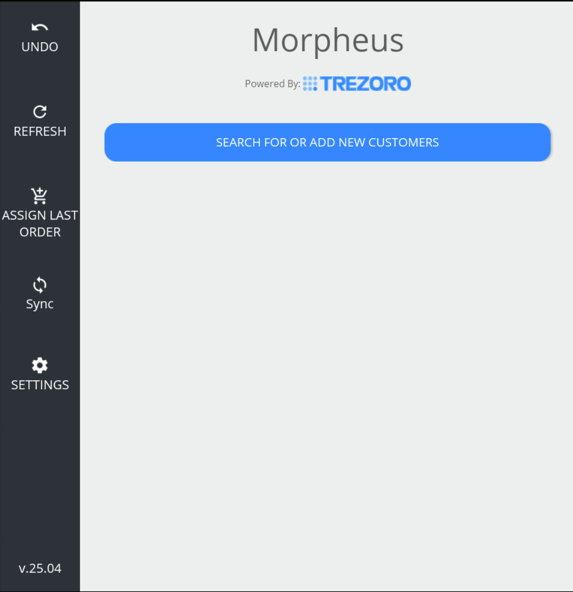
When the reminder popup appears: Click to open the Trezoro app
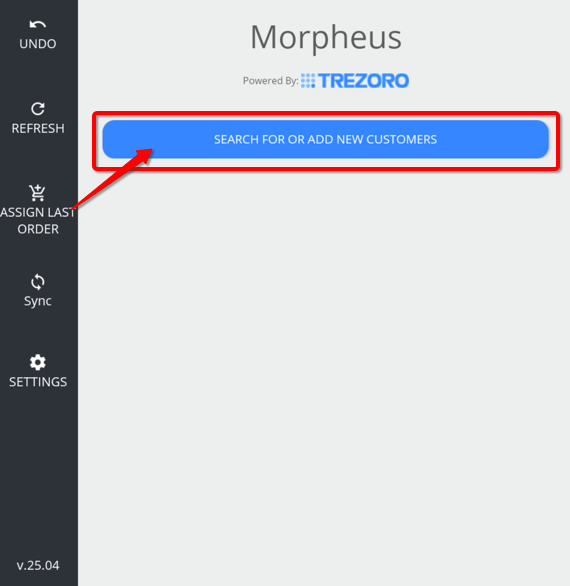
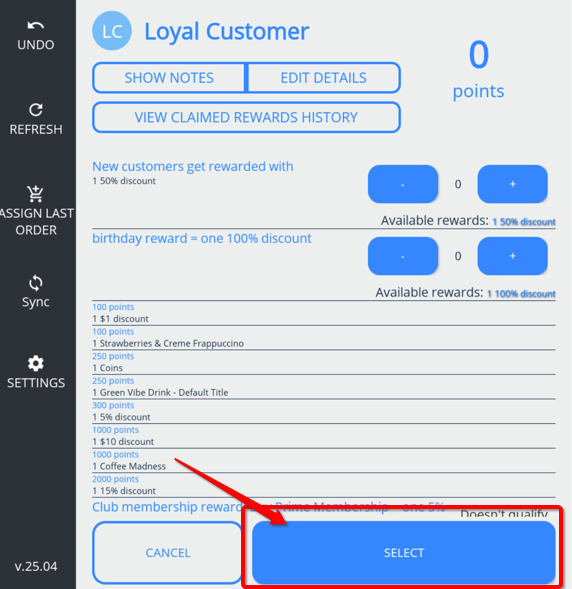
Select the customer: Either search for an existing customer profile or create a new one if they're a first-time loyalty member
Complete the transaction: The system will return you to the checkout screen
Process payment: Complete the payment as normal
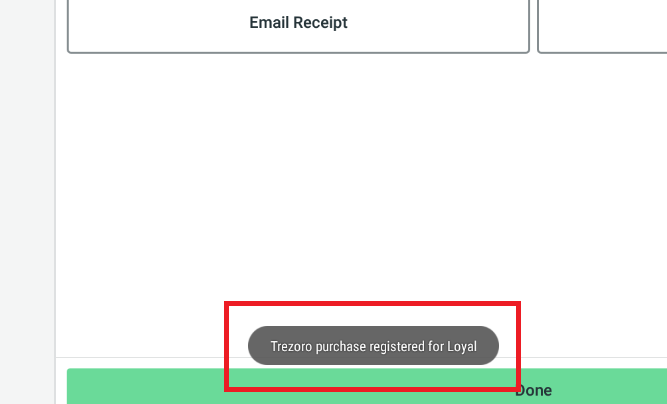
Confirm recording: A success message will confirm that the transaction and loyalty points were recorded

Benefits of Using the Reminder Popup
100% transaction capture: Never miss recording a loyalty customer's purchase
Automatic point allocation: Customers receive correct points without manual intervention
Reduced administrative time: Eliminates backoffice point adjustments
Improved customer experience: Customers see their points update in real-time
Better data accuracy: Complete transaction history for analytics and reporting
Troubleshooting Common Issues
Q: What if the reminder popup doesn't appear? A: Verify that the setting is enabled by checking the box in Settings again and ensuring you clicked OK to save.
Q: Can I disable the popup for non-loyalty customers? A: Yes. Simply dismiss the popup when processing transactions for customers not enrolled in your loyalty program.
Q: What happens if I forget to click the popup? A: You can still link the transaction to the Trezoro customer by tapping the Trezoro Loyalty button on the Clover checkout/payment screen. Otherwise, you'll need to manually record the transaction and adjust points in the Trezoro backoffice.
Summary
Enable the Trezoro reminder popup in your app settings to ensure every loyalty program transaction is recorded automatically. This feature streamlines your checkout process, guarantees accurate point allocation, and eliminates time-consuming manual corrections. The popup appears at each sale, prompting you to select the customer profile before completing the transaction.
Key takeaway: Enabling the "Show a reminder popup to use Trezoro on each order" setting is the most effective way to maintain accurate loyalty program records and provide excellent customer service.